
Count the words on a page and see how long it takes to read.
Browser extension
Table Export
Export any table on a page as CSV, JSON or YAML.
What it does
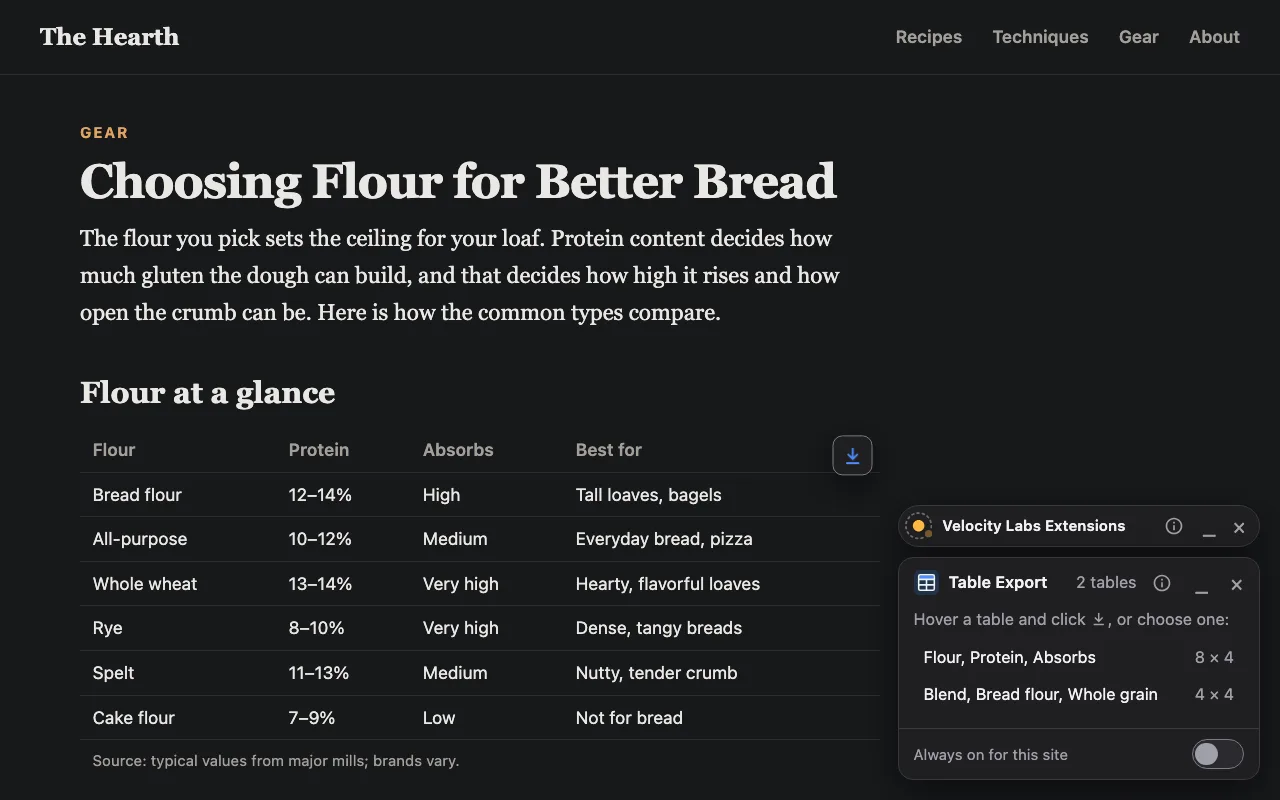
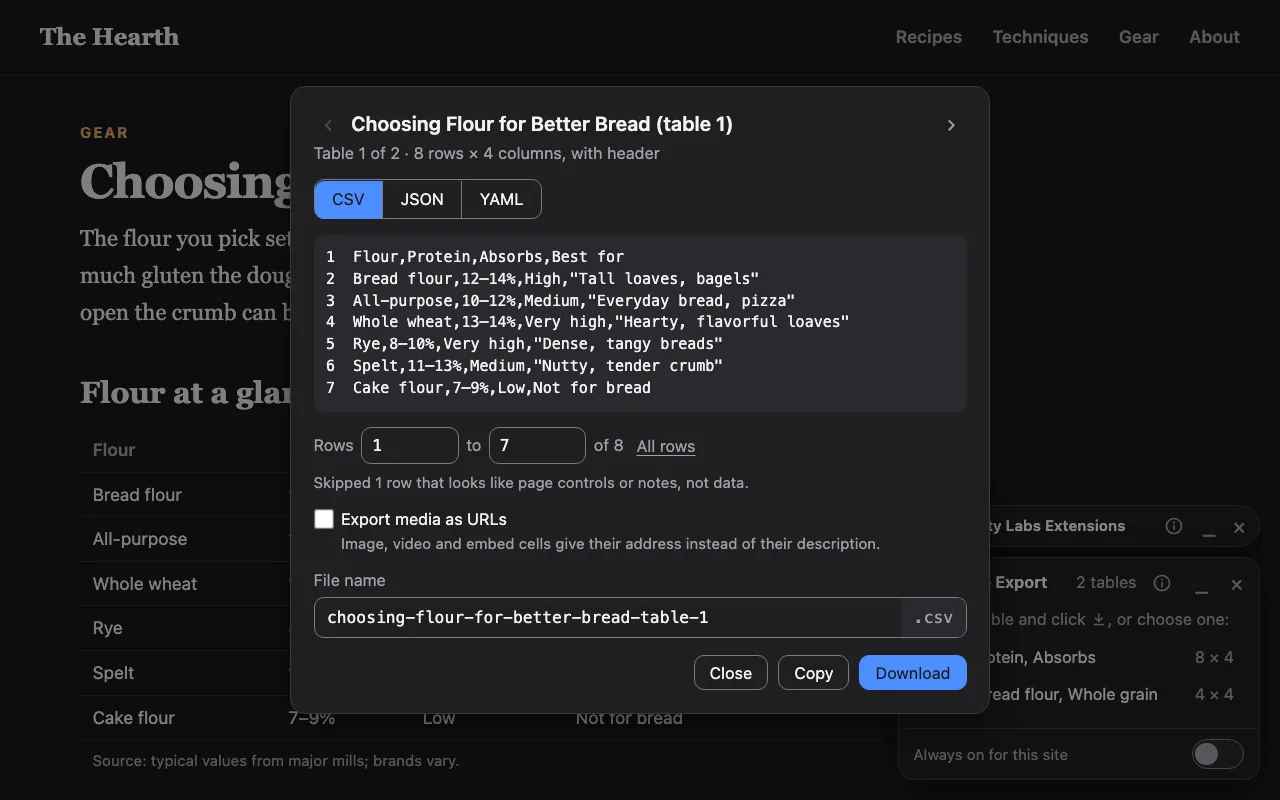
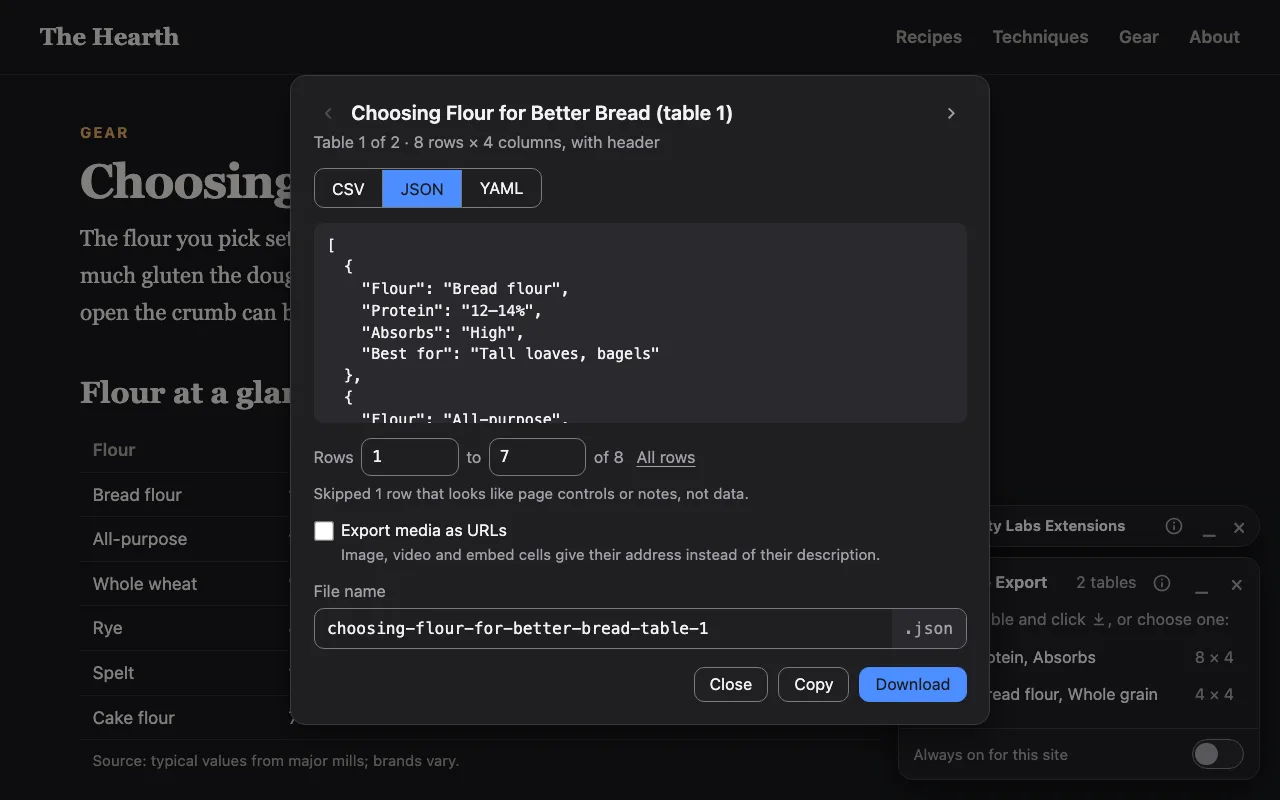
Hover a table and click the download icon, or pick one from the list in its panel, then preview it, choose the rows you want, and download or copy it. It skips page clutter like pagination and filter rows, fills in merged cells, and keeps spreadsheet formulas from sneaking in through the data.
It can:
- Read the page you're on, after you click its button
- Save the file you export
- Remember your format and options, in your browser only
Screenshots
How to use it
- Click Table Export in your browser’s toolbar. Its panel lists the tables on the page.
- Hover a table and click the download icon over it, or choose the table in the panel.
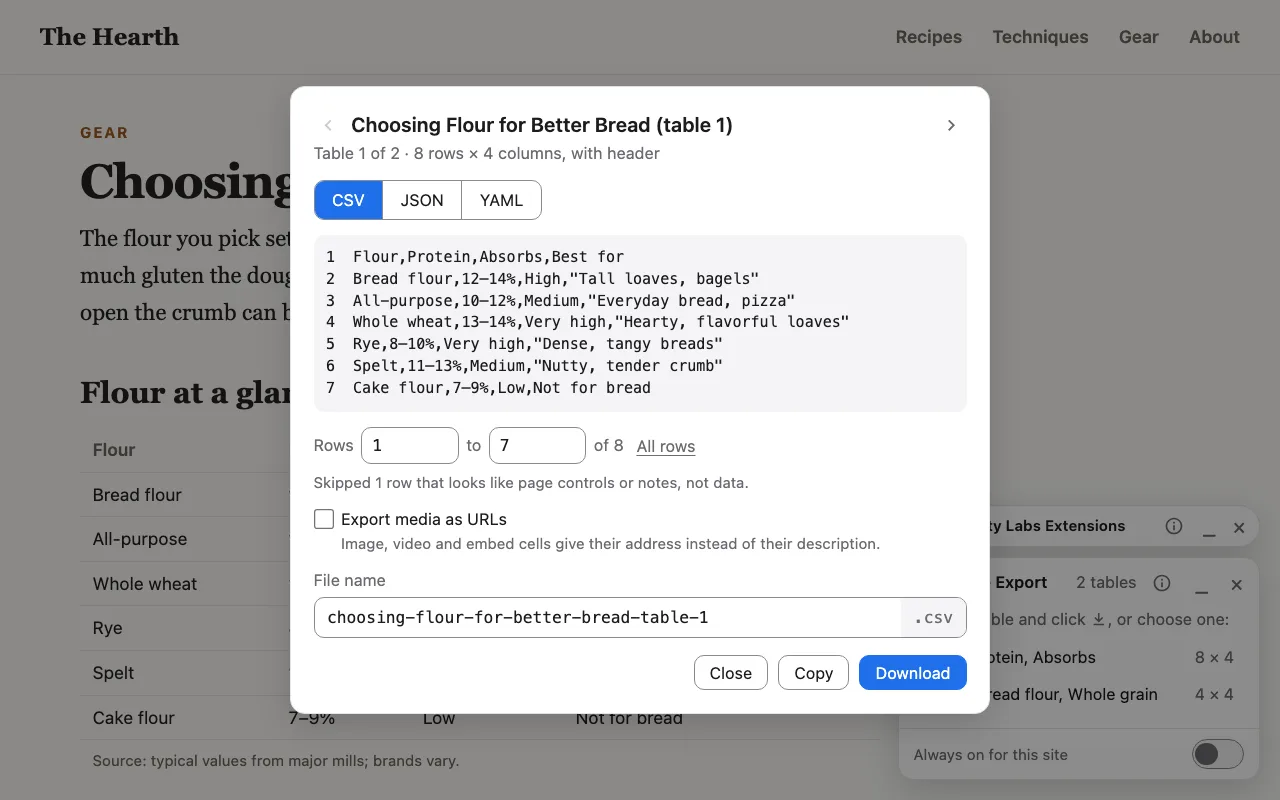
- Pick CSV, JSON or YAML, check the preview, set the rows and file name, then Download or Copy.
Always on for a site. To have Table Export start by itself on a site you use a lot, turn on "Always on for this site" in its panel. Each panel has _ to minimize it and × to turn it off.
Privacy
Table Export collects no data. It has no analytics, no accounts and no servers, and its pages
block every network request (a Content Security Policy of connect-src 'none'), so
it can't send anything anywhere. Anything it reads stays in your browser.
- Only after you click. Installing it gives it no access to any website. It can see a page only after you click its toolbar button on that page, and only that tab.
- It asks for
activeTabandscripting(to read the tables on the tab you clicked on),downloads(to save the file) andstorage(to remember your format and whether to export media as URLs). - Your settings are kept in the extension’s own storage, which websites can’t read.
- Safari has no downloads permission for extensions, so there Table Export saves the file from the page itself. Nothing leaves your computer either way.
- "Always on" is one site at a time. If you turn it on, your browser asks you to confirm, naming the site, and it covers that site only. Nothing is granted at install, and you can turn it off from the panel or in your browser's extension settings.
- Nothing hidden. In Chrome and Edge, the "Always on" confirmation is a page websites can load, so a site could tell that Table Export is installed, though its address changes every session to make that hard. It reveals nothing else. In Firefox and Safari the confirmation opens in a small window instead, and no site can load any part of it.
Links from the extension to this site don't tell us which page you came from. If you write to us below, we get only what you send, and use it only to answer you.
Last updated November 13, 2026.
More extensions from us

Copy a quote with a link back to the exact spot on the page.
Questions or problems?
Tell us what happened and we'll get back to you. Ideas for what it should do next are welcome too.